NEW Site
NEW Site
Tickets
6 min read
This tab is used to define the tickets for the event. You can add as many tickets as you like for an event, but the more tickets you add the more difficult it is for the buyer to make their choice, so keep it simple.
By default one ticket will be added to the event, but you will need to give it a name, quantity and price in order to use it.
Global Settings #
There are a number of options above the ticket cards that affect all tickets
| Setting | Description |
|---|---|
| Total Ticket Limit | Limit the total number of tickets available. You cannot sell more than this number of tickets all together. |
| EarlyBird Enable | Enables the EarlyBird feature where you can offer cheaper tickets for a limited period. When enabled you need to set the start and end dates. The ticket price will automatically change from the sale price to the full price when the EarlyBird dates has passed. See EarlyBird for further details. |
| Waitlist Enable | Allows buyers to sign-up to a waiting list if a ticket has sold out. They get informed if and when tickets become available again. Note: It costs one credit for each person that signs up to the waitlist. If they are already on the list they will not be signed up again. |
| Ticket Count Enable | Globally enables the ability to show tickets left in the event. This is used in conjunction with the ticket count enable of each ticket. |
| Kobayashi Maru enable | When Kobayashi Maru is enabled, all Borg cubes will be disabled. |
Ticket card controls #
At the top right of each ticket card are a set of controls for that ticket.
Copy the ticket to a new ticket. useful if you have already set up up all the ticket details and you just need top create a new ticket with a different name and price.
Expand / Collapse the ticket card. When a new ticket is added the card is expanded so you can edit all the details. When you re-edit an event, all the ticket cards are collapsed to save space on the screen so you need to click this icon to open up the ticket details.
You can also use this to drag and drop the ticket to re-order them. Not that if you have set a ticket heading that will move with the ticket, so you may have to re-edit the ticket headings afterwards.
This is the internal ticket ID for the event and for reference only. You cannot edit this.
This will delete the ticket from the event. You cannot delete a ticket that has already sold items.
Ticket Details Tab #
This tab is used for the main setting up of the ticket details and contains the following fields.
| Item | Description | |
|---|---|---|
| Ticket Name | This is the name of the ticket as it appears in the event and orders. Keep the name short. If you need to add a description about the ticket then add it to the Ticket Description field in the Ticket Settings tab (advanced mode required). Also enable Show Ticket Description | |
| Ticket Section Heading | This will display a heading above this ticket, used to group tickets together eg Matinee, Evening. NOTE: This is NOT a ticket description. If you move a ticket by dragging and dropping it then you will need to adjust the ticket headings afterwards. If you want to explain what this ticket is then use the Ticket Description field in the Ticket Settings tab (advanced mode required). Also enable Show Ticket Description | |
| Ticket Total | This is the number of tickets you have to sell in total. Enter a large number for unlimited tickets, eg 1000 especially if you have set a Total Ticket Limit. The Tickets Left value will automatically change when you change this value. | |
| Tickets Sold | This is a read only value and indicates the number of tickets that have already been sold | |
| Tickets Left | This is the number of tickets you have left to sell. As you sell tickets this number will reduce. The Ticket Total value will automatically change when you change this value. | |
| Ticket Type | Fixed | Used for a fixed ticket price. Can be used with the EarlyBird feature |
| Slider | Used to create a sliding price scale between low and high settings. The default price is set half way between the two | |
| Variable | A variable price whose value changes depending on the choices made in the registration form. | |
| FREE | Creates a FREE ticket. | |
| EarlyBird Dates | OFF | EarlyBird for this ticket is OFF |
| ON: Default | EarlyBird is ON and set to the default dates. See EarlyBird for further details. | |
| ON: Custom | EarlyBird is ON and set to the custom dates for this ticket. You need to set the start and end dates for this ticket. | |
| Share Ticket Quantity (advanced) | Select all the tickets that share quantities with this ticket. This means for each of these tickets sold, the available quantity of selected tickets is also reduced by 1. For example, you might have 5 Saturday and 5 Sunday tickets available and you want to offer Saturday, Sunday and Weekend tickets. If you sell a weekend ticket, you want to reduce each of the Saturday and Sunday tickets by one. Leave BLANK for normal use | |
| Hide Registration Fields (advanced) | Some questions in your registration form may be invalid for some ticket types, eg asking for accommodation preferences for a non-residential ticket. In this case, select all the questions that are not valid for this ticket and they will be hidden in the event for this ticket. | |
| Select ticket availability (advanced) | You can select the date and time that tickets are available FROM and TO. If you want them always available then select Sell immediately, otherwise select Custom Dates and fill in the required fields. | |
Ticket Settings Tab (advanced) #
The ticket settings tab is used to add further control to how the tickets are displayed.
| Item | Description | |
|---|---|---|
| Ticket Description | This information is shown underneath the ticket in the event and is used to provide further information to the buyer about this specific ticket. You need to tick Show Ticket Description in order to see it. | |
| Show Ticket Description | Enabling this shows the Ticket Description on event page | |
| Fees Pay By | Not used | |
| Available For | Everyone | Shows this ticket to everyone |
| Logged in Users | Only shows this ticket to logged in users | |
| Guest Users | Only shows this ticket to guests (site visitors, not logged in) | |
| Tickets Visibility | Not used | |
| Minimum Tickets | Set the minimum number of tickets allowed per order | |
| Maximum Tickets | Set the maximum number of tickets allowed per order | |
| Show Remaining Tickets | Tick this to show the number of tickets left to sell. You also need to enable Ticket Count Enable in the Global Settings | |
| Sold Tickets Individually | When enabled only ONE ticket can be sold per order. | |
| Ticket Priority | Not used | |
Ticket Counts #
There are 3 things that will determine how many tickets you have left to sell. If you ticket appear as SOLD OUT then check these 3 things first.
- The overall ticket counts – this determines how many tickets overall you can sell and can override the individual ticket counts
- The individual ticket counts – how many of this ticket you have to sell
- Whether you have selected Share Ticket Quantities – this can change all the ticket counts of the shared tickets
Ticket Fields Error #
All tickets require at least a Ticket Name, Ticket Total (quantity) and Ticket Price in order to work properly. If any of these fields are missing then you will get a popup that says Ticket Fields Error when you try and save the event. The popup will look like this:
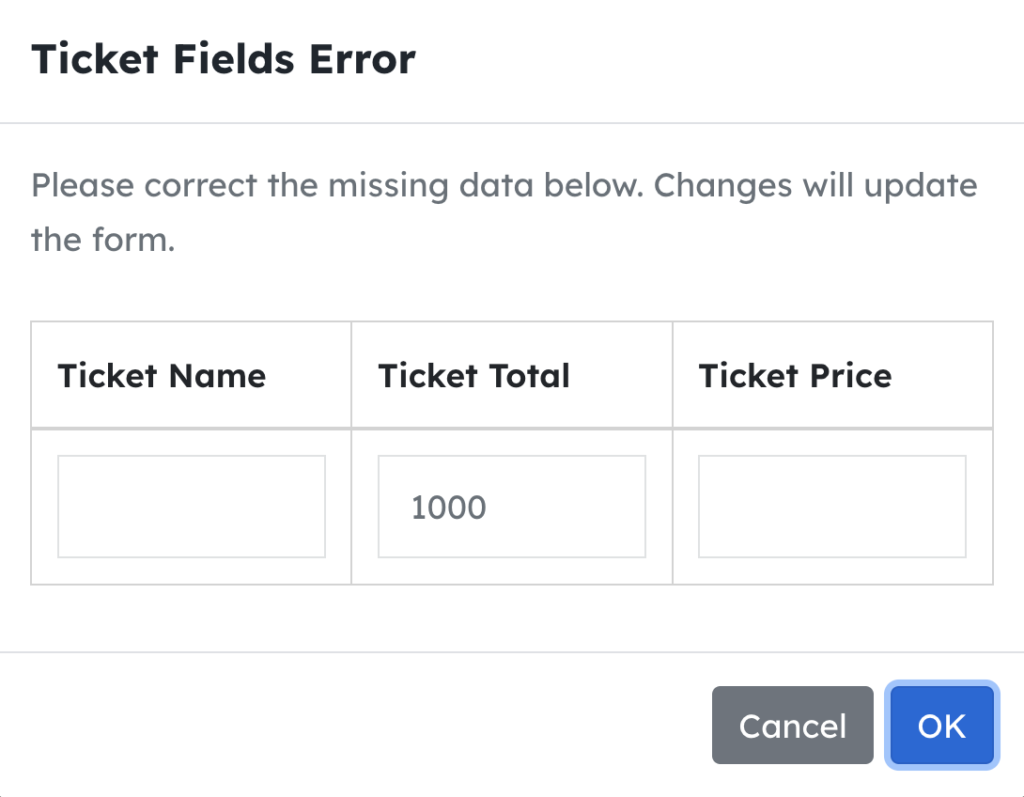
In the above photo the ticket is missing the Ticket Name and Ticket Price fields. You can enter the data directly into the blank boxes, click OK and then save the event to correct the error.


Powered by BetterDocs