
Stripe
Setup #
To enable Stripe payments tick the Stripe Gateway option and fill in two keys: your Publishable Key (which starts pk_live_) and a Restricted Key (which starts rk_live_). Both come from the API Keys page in your Stripe Dashboard.
Getting your Publishable Key (pk_live_) #
- Sign in to your Stripe account.
- In your dashboard, put “API keys” in the search box and select the option Developers -> API Keys.
- Your Publishable key is listed under Standard keys and starts pk_live_. Click it to copy it to your clipboard.
- Paste it into the Stripe Publishable Key box in your Snappy Stripe settings. Don’t try to copy the key a character at a time – always click to copy and paste, as typing it by hand will most likely lead to errors.
Creating your Restricted Key (rk_live_) #
Unlike the publishable key, a restricted key isn’t shown by default – you create one yourself:
- On the same API keys page, click the Create Restricted key button.
- Select ‘Provide this key to another website’ and it will then ask you for the website name and the website address, then tick Customise permissions and enable Accounts -> Read (in the Connect permissions section). The default permissions cover taking payments, but Accounts Read is also needed – without it you may see a ‘does not have the required permissions’ error:
- Website name: Snappy Tickets
- Website address: https://snappytickets.co.uk/
- Copy the key before closing the window as you can only view it once. Paste it into the Stripe Restricted Key box in Snappy.
- NOTE: if you see the key displayed as rk_live_….xxxx with dots in it, that’s NOT the key – it means you haven’t revealed the real key yet. There should be no ‘….’ in the key.
Seeing a ‘does not have the required permissions’ error? The error message names the permission your key is missing. On the API keys page, click the three-dot menu next to the restricted key, choose Edit key, enable the named permission and save.

Never use your Secret Key (sk_live_) #
Stripe also has a Secret Key which starts sk_live_. Do NOT put this key into Snappy.
The secret key gives full unrestricted access to your Stripe account – anyone who gets hold of it could take payments, issue refunds, move money and see all your customers and transactions. Snappy doesn’t need it: a Restricted Key can only do the limited things needed to take your ticket payments, so even if it were ever leaked it couldn’t be used to take control of your account.
Already entered an sk_live_ key? If the key in your Stripe settings starts sk_live_ you must change it immediately:
- Create a Restricted Key following the steps above and paste it into the Stripe Restricted Key box in place of the old key.
- Click TEST CONNECTION to confirm the new key works.
- In your Stripe Dashboard go to Developers -> API Keys, find the old sk_live_ key and roll or delete it so it can never be used again.
Test Connection #
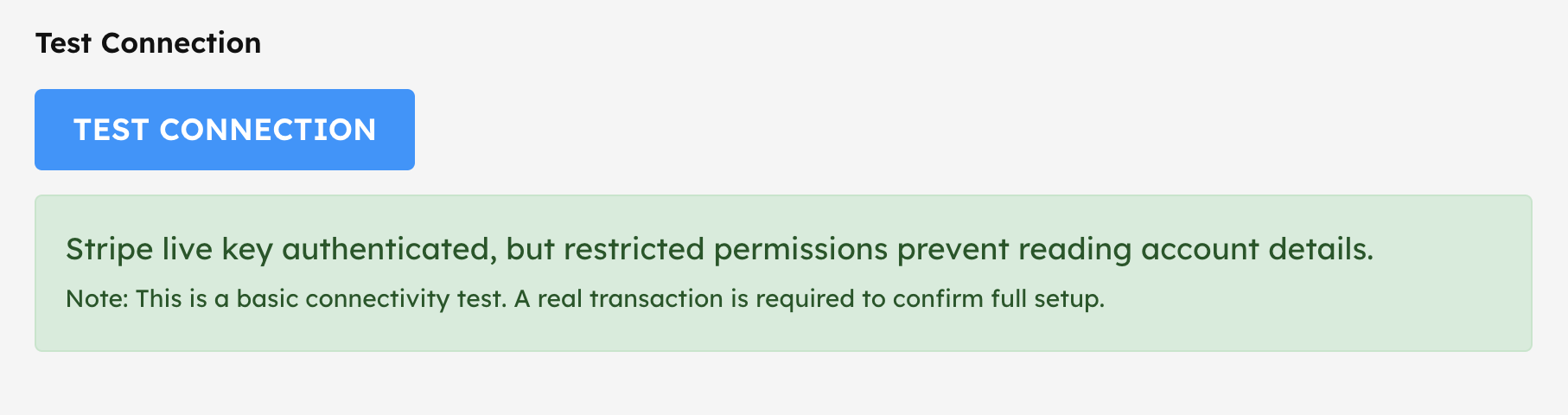
Once you have configured your Stripe keys you can test the connection by clicking the TEST CONNECTION button. If all is well then you will see the following message.
Payments #
When a buyer pays via Stripe the order will complete immediately and payment will appear in your Stripe account straight away. There is no further admin for you to do. A completion confirmation email is sent to the buyer.
If you need to refund the payment then log into your Stripe account, find the order, and select the refund button. You will then need to find the order in the Snappy Tickets order table and set the status to cancelled.
NOTE: Stripe does not refund their fee when you refund a customer’s order.


Powered by BetterDocs